

Maintenance windows allow you to schedule planned downtime for your services, preventing false alerts and preserving accurate availability metrics during system updates, deployments, and infrastructure maintenance activities. During a maintenance window you can independently control two behaviors:Documentation Index
Fetch the complete documentation index at: https://checkly-422f444a-manel-sp-156-update-docs-to-include-new-ch.mintlify.app/llms.txt
Use this file to discover all available pages before exploring further.
- Pause check execution — scheduled check runs are skipped entirely.
- Silence alerts — checks keep running and collecting data, but alert channel notifications (email, Slack, etc.) are suppressed.
Manual and triggered check runs (e.g. via the API or the Checkly UI) always execute, even when check execution is paused. However, if alert silencing is enabled, alerts from these runs will still be suppressed.
Creating a maintenance window
Navigate to the Maintenance Windows page indicated by the wrench icon on the menu. Then click “create new” in the top right corner. After giving your window an appropriate name, the core options you have are:Setting a schedule
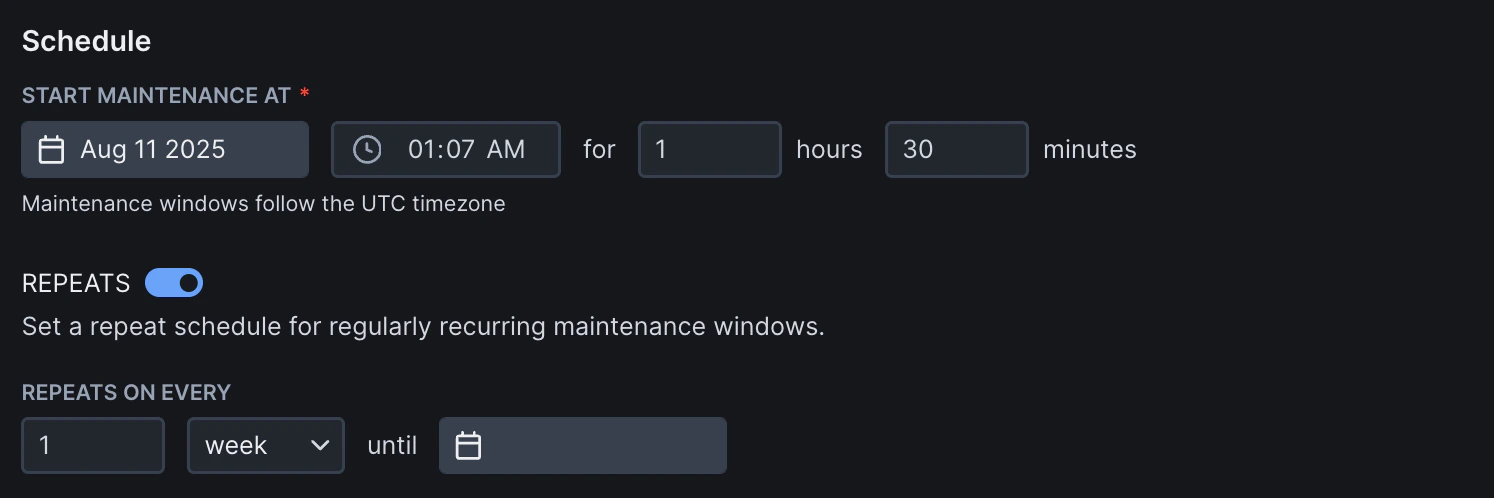
Setting repeats
If your maintenance window repeats at a certain cadence, toggle the repeat option. Here you can set- The amount of repetitions.
- The unit of repetition, i.e. Day, Week or Month.
- The date on which the repetition cycle should end.
If you schedule a window on the 31st and add a monthly repeat cycle, your schedule will also activate on the 30th of the relevant months and the 28th or 29th of February depending on the leap year.
Check behavior
Each maintenance window lets you configure how checks behave during the maintenance period. Toggle the behaviors you need:Pause check execution
When enabled, scheduled check runs are skipped for the duration of the window. You can scope which checks are paused:- All checks — every check in the account is paused.
- Checks matching tags — only checks (and check groups) with matching tags are paused.
Silence alerts
When enabled, alert channel notifications are suppressed while checks continue to run and collect data. This is useful when you want to keep monitoring but avoid noisy alerts during expected degradation. You can scope which checks are silenced:- All checks — alerts are silenced for every check in the account.
- Checks matching tags — only checks (and check groups) with matching tags have their alerts silenced.
Adding checks via tags
You scope which checks are affected by adding tags to the pause or silence configuration. Any checks or check groups with matching tags will be included. This way, any checks or check groups created after creating your maintenance window can still be made part of the window; no need to update the maintenance window configuration. Just set the correct tags.Monitoring maintenance status
During an active maintenance window, the home dashboard shows:- A banner at the top summarizing which behaviors are active (paused, silenced, or both).
- A Maintenance badge on each affected check row, with a tooltip showing the maintenance window name and whether the check is paused, silenced, or both.
- An Under maintenance filter in the status filter dropdown, allowing you to quickly find all checks currently affected by a maintenance window.